https://www.youtube.com/watch?v=fl1DSmwQKKY
What you'll end up with
Claude Code installed on your machine, signed in to your account, and a small working webpage you made by asking for it — built in a throwaway folder, purely to prove the thing works and to show you how the conversation goes.
Time: 45–60 minutes, most of it waiting for downloads.
What this costs
| Thing | Cost |
|---|---|
| Claude Code | Needs a paid Claude plan. Pro is $17/month billed annually, $20 monthly. The free plan does not include Claude Code. Cheaper alternative: a Claude Console account with pay-as-you-go credits. Check whether your university has Claude for Education first. use this link for 7 day free trial https://claude.ai/referral/OqjJ8xm46g |
Before you start
A laptop running Windows 10 (build 1809) or later, or macOS 13 or later, with 4 GB RAM and about 3 GB free disk space. An internet connection. A paid Claude account. use this link for a 7 day free trial https://claude.ai/referral/OqjJ8xm46g
Official guides, if you want another voice on any of this: terminal guide for new users · quickstart · Claude Code 101 course · setup reference
1. Windows only: make Windows show you file extensions
Do this first. It takes ten seconds and prevents a problem that is genuinely hard to diagnose later.
By default Windows hides the last part of every filename. A file you think is called index.html may actually be index.html.txt, and Windows will show you index.html either way. Web servers are not so forgiving, and you will lose an hour.
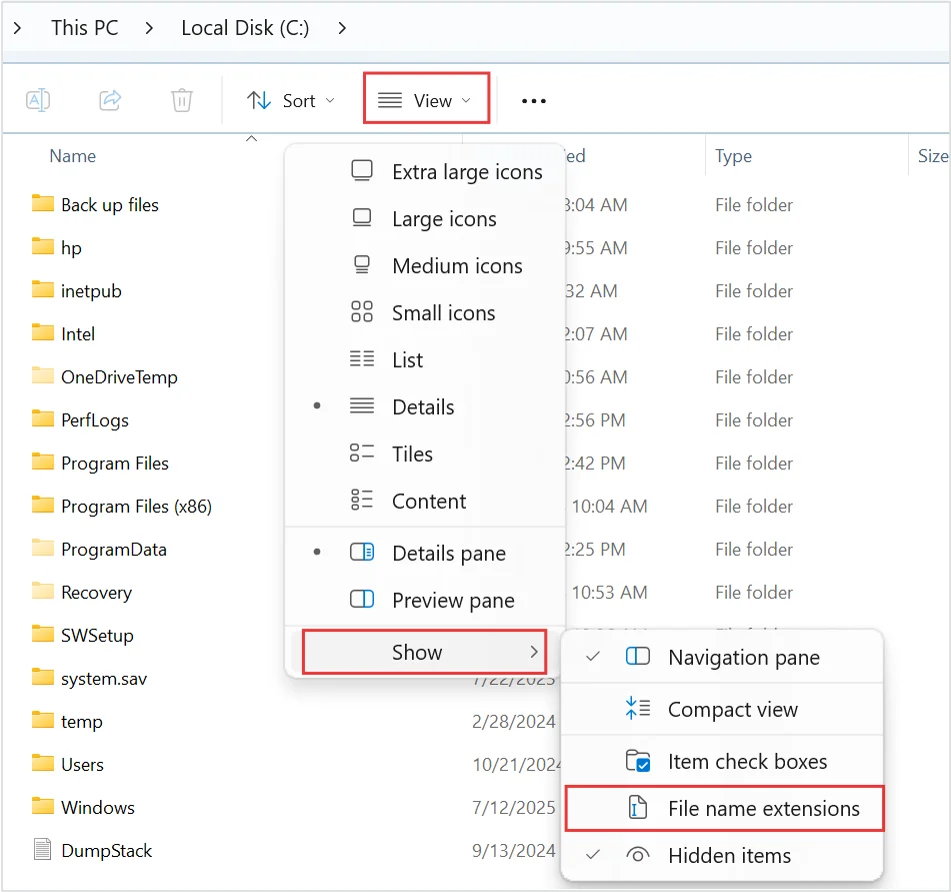
Open File Explorer → View → Show → tick File name extensions.
(On Windows 10: View tab → tick File name extensions.)
2. Open a terminal
The terminal is a window where you type instructions instead of clicking them. It looks intimidating and isn't — it's a text field with a very long memory.
Windows — press Win + X and choose Terminal or Windows PowerShell.
macOS — press Cmd + Space, type Terminal, press Enter.
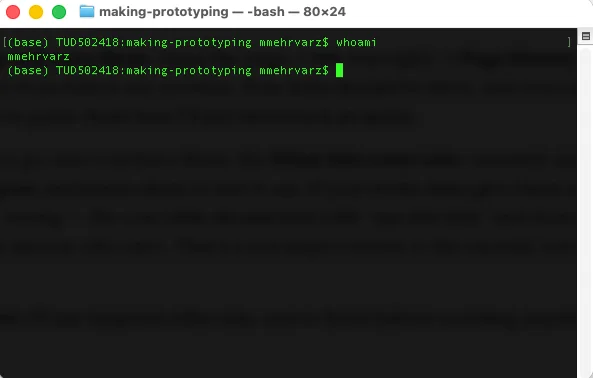
Type whoami and press Enter. Windows prints yourmachine\yourname; macOS prints just your username. Either way: you typed a command, it did a thing, it told you what happened. That's the entire idea.
3. Install Git
Git and GitHub are two different things, and it's worth getting this straight now. Git is a program that runs on your laptop: it records versions of your files and knows how to send them somewhere. GitHub is a website that stores what Git sends.
You won't use Git in this tutorial. You install it now because it's part of getting the machine ready, and because on Windows Claude Code decides which shell to use at install time and makes a better choice if Git is already there.
Windows — download the installer from git-scm.com/install/windows and run it. Click Next through every screen. The defaults are correct. There are a lot of screens. Change nothing.
macOS — macOS doesn't ship Git either. What's on the machine is a placeholder that pops an install dialog the first time anything asks for Git, so trigger it deliberately:
xcode-select --installClick Install in the dialog. It's a couple of gigabytes — start it and read ahead while it downloads. You also get python3 out of it, which is useful later.
Now open a brand-new terminal window and check. This command is the same on both systems:
git --version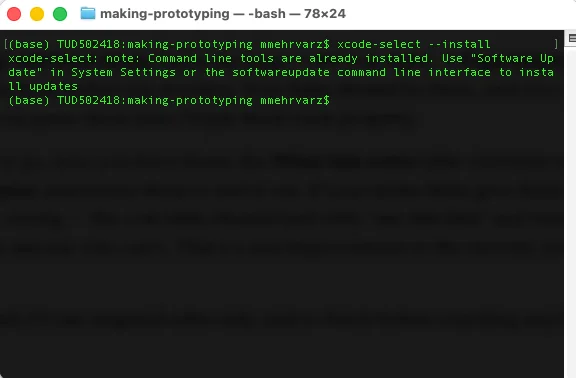
4. Install Claude Code
Paste the line for your system and press Enter.
Windows (PowerShell):
irm https://claude.ai/install.ps1 | iexmacOS:
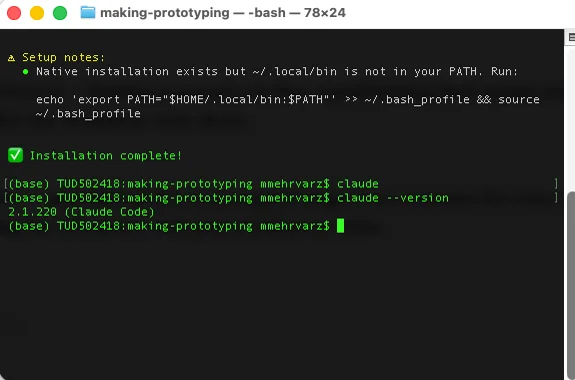
curl -fsSL https://claude.ai/install.sh | bashText scrolls past. When it finishes you'll see Claude Code successfully installed!
Now close the terminal and open a fresh one, then check — same command on both systems:
claude --versionYou should get a version number followed by (Claude Code).
5. Check your install is healthy
claude doctorThis prints a report and exits — it doesn't start a session. Two things to look at: the install method, which should say native, and auto-updates, which should say enabled.
If both look right, you're done. Anything it flags comes with a suggested fix printed next to it.
6. Make a folder to experiment in
Claude Code can only see files in the folder you start it from, and below. That's a safety feature: it can't wander into your thesis. So give it somewhere harmless to start.
Make the folder the normal way, by clicking. No terminal needed for this part.
Windows — open File Explorer (Win + E). Click into the address bar at the top, type %USERPROFILE% and press Enter — that takes you to your home folder, C:\Users\YourName. Then right-click in the empty space → New → Folder, and call it claude-test.
macOS — press Cmd + Shift + H for your home folder, then Cmd + Shift + N for a new folder. Call it claude-test.
Lowercase, no spaces — it saves trouble later.
Now point the terminal at that folder. This is the one bit you can't do by clicking, because Claude Code has to be started from inside the folder. There's a shortcut on each system, and neither involves typing a path:
Windows — open the claude-test folder in File Explorer, click into the address bar, type powershell and press Enter. A PowerShell window opens already inside that folder.
macOS — in Terminal, type cd and a space, then drag theclaude-testfolder from Finder onto the Terminal window. It fills in the path for you. Press Enter.
cd [drag the folder here]7. Log in
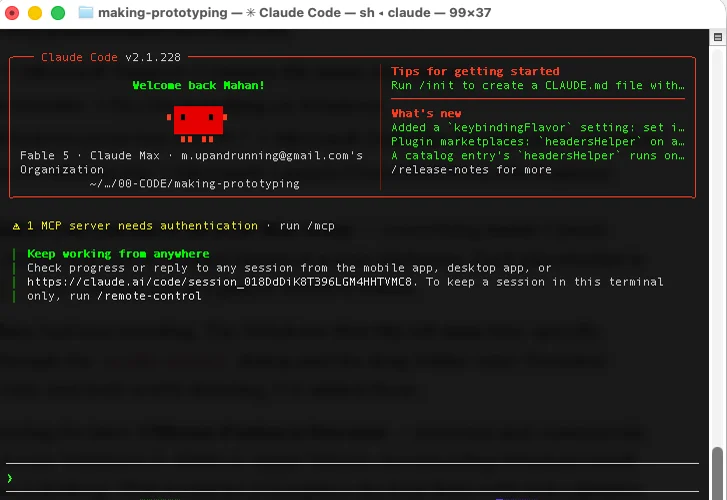
claudeTwo things happen the first time:
- Claude asks "Do you trust the files in this folder?" — it wants permission to read what's there. Say yes; it's your own empty folder. You'll see this prompt every time you start Claude somewhere new.
- A browser window opens. Sign in to your Claude account, then come back to the terminal.
You'll see a prompt waiting for you. You are now talking to Claude Code.
8. Make something, so you know it works
Type this and press Enter:
Make me a single webpage that says hello, with my name on it in large type
and a coloured background. Plain HTML and CSS, one file called index.html.
Watch what happens. Claude asks permission before writing each file — a little menu appears; press Enter to accept the highlighted Yes. This is the good kind of friction: nothing lands on your disk without you seeing it first.
When it's done, open the folder and double-click index.html. It opens in your browser. That's a webpage you made by asking for it.
To get to the folder without leaving the terminal, type explorer . on Windows or open . on macOS — including the full stop, which means "the folder I'm in".

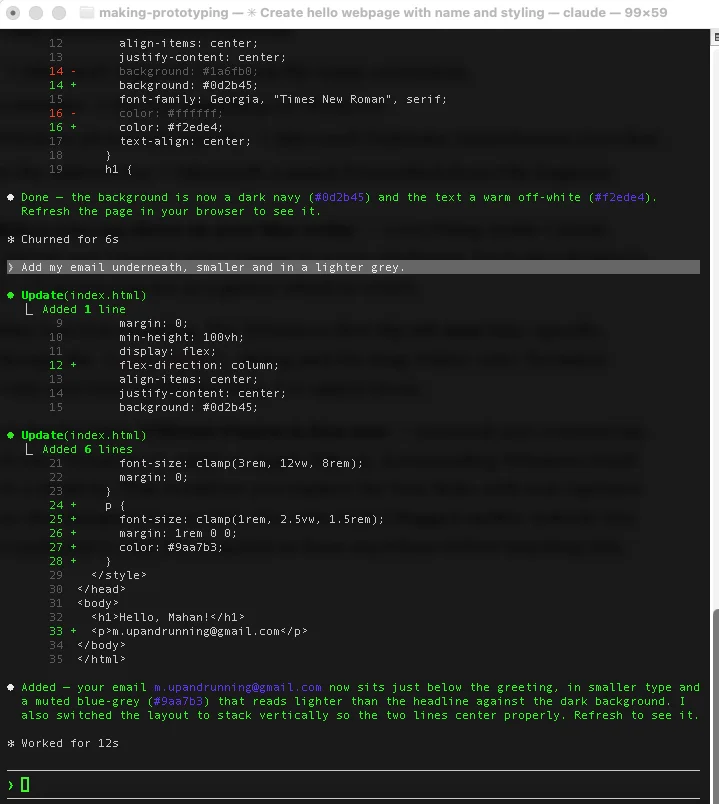
Now change it. Stay in the same conversation and ask for one thing at a time:
Make the background darker and the text off-white.

Add my email underneath, smaller and in a lighter grey.Reload the browser after each change (Ctrl + R on Windows, Cmd + R on macOS). That back-and-forth — ask, look, ask again — is the whole working method. Everything else is detail.
9. Try plan mode
One more thing, because it's the habit that matters most.
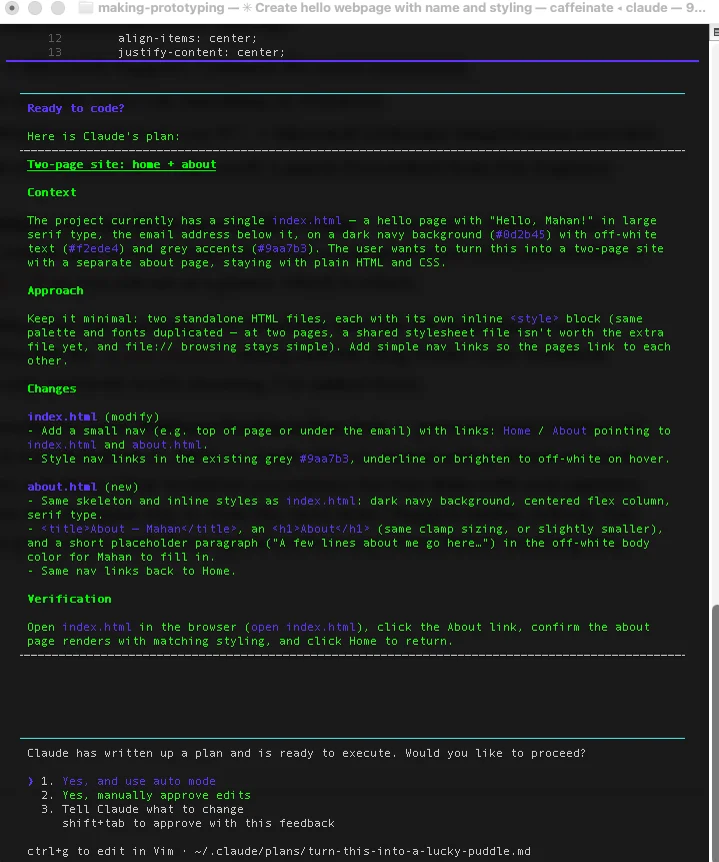
Press Shift + Tab until the prompt shows plan mode. In plan mode Claude thinks and proposes but does not touch your files. Ask for something bigger:
Turn this into a two-page site with a separate about page.You get a plan instead of files. Read it, argue with it — "don't add a nav bar", "keep it to one CSS file”, “make the name and fancy animated typography" — and only when you're happy, press Shift + Tab again to leave plan mode and tell Claude to go ahead.
You're set up
Type /exit. You can delete the claude-test folder whenever you like.
Next: Building a portfolio website with Claude Code, GitHub & Vercel, which assumes everything above is done.

Things worth knowing
Shift + Tab cycles permission modes. Plan mode proposes without editing; accept edits stops asking permission for every file. Start in plan mode for anything big.
One change at a time. Ask, look, then ask again. If you request six changes and two are wrong, you now have to untangle which.
/clear starts a fresh conversation. Long conversations get muddled — clear when you switch to a genuinely different task.
After installing anything, open a fresh terminal. A terminal only checks what's installed when it opens. This causes more confusion than any other single thing on Windows.
Claude will sometimes be confidently wrong. It will invent a CSS property or "fix" a bug by deleting the feature. Say so plainly — "that broke the layout, look again" — and it usually corrects course. Treat it as a fast, well-read, occasionally overconfident collaborator.
It can't press keys. Claude runs commands and reads their output, but it can't drive an interactive wizard with arrow-key menus, or type a password. Those are yours to do.
Install troubleshooting
claude is not recognized / command not found
The full fix is inline in step 4, in the two orange boxes. One caveat to add: a PowerShell opened from the File Explorer address bar can carry a stale environment even after a PATH change — use the Start menu to open the window you test in.
Windows: the install command itself fails or is blocked
On a managed university laptop, security software can block the install script. Try WinGet instead, which is already on Windows 10 1809+ and Windows 11:
winget install Anthropic.ClaudeCodeWinGet installs don't auto-update — run winget upgrade Anthropic.ClaudeCode occasionally.
Windows: irm is not recognized
You're in CMD, not PowerShell. Close it and open PowerShell (Win + X → Terminal or Windows PowerShell). Check the prompt starts with PS.
Windows: "Windows protected your PC"
That's SmartScreen, and it appears for almost any downloaded installer. Click More info → Run anyway.
claude --version works, but it's the wrong version
You have two copies installed and the old one is winning.
which -a claudeIf you get more than one line — for example one in /opt/homebrew/bin and one in /Users/you/.local/bin — remove the Homebrew one:
brew uninstall --cask claude-code
hash -r
Then run which -a claude again. One line only.
which -a claude shows the same path twice
Harmless. Open a fresh terminal window and it'll show once.
My prompt starts with (base)
That's Anaconda. Normal, ignore it, changes nothing here.
Should I put sudo in front of the install command?
No. If an install fails, sudo is not the fix — it usually makes the next problem worse. Re-read the error instead.
Terminal keeps telling me to run chsh -s /bin/zsh
Ignore it for now. If you do run it later and claude stops working, go back to step 4, Check 3 — running all three echo lines there covers you either way.
macOS: syntax error near unexpected token or HTML in the terminal
The install URL returned a web page instead of the installer. If it mentions your region, Claude Code isn't available in your country. Otherwise try again, or install with Homebrew: brew install --cask claude-code.
Claude Code says I need to upgrade my plan
Claude Code isn't on the free Claude tier. A Console account with a few euros of pay-as-you-go credit is the cheapest way in.
Something else
Run claude doctor — it prints a diagnosis of your installation without starting a session. Full guide: troubleshoot installation.