What you'll build
A one-page portfolio site with your own project images on it. You preview it on your machine, put it on GitHub, and deploy it to a live .vercel.app address. At the end you make one more change and watch the live site update by itself.
Time: 3 hours, if your content is ready.
What this costs
GitHub is free. Vercel is free on the Hobby plan, which is for personal, non-commercial use — a student portfolio qualifies, paid client work doesn't, and even a donate button counts as commercial.
Before you start
Have your content ready before you sit down. 3–6 project images — photos or renders, exported at about 1600 px on the long edge — plus a title, a line of metadata and one paragraph for each. A short statement about yourself. Your contact details.
1. Make your project folder and put your images in it
Make the folder by clicking, the same way you did in the setup tutorial.
Windows — open File Explorer (Win + E), click into the address bar, type %USERPROFILE% and press Enter. Right-click in the empty space → New → Folder → call it portfolio. Open it, and make another folder inside called images.
macOS — Cmd + Shift + H for your home folder, then Cmd + Shift + N → call it portfolio. Open it, Cmd + Shift + N again → images.
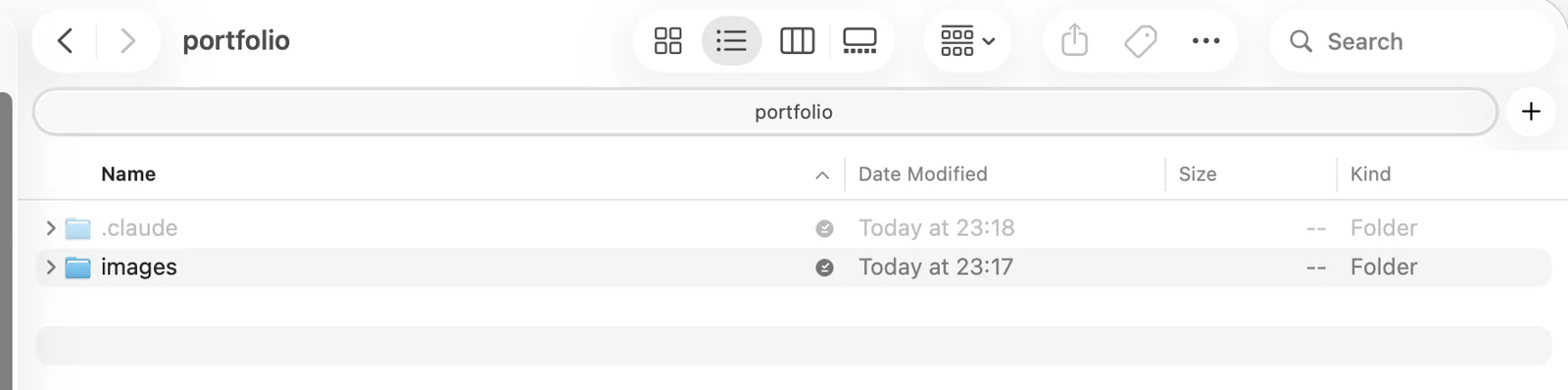
Now copy your project images into theimagesfolder. Name them readably — kettle.jpg, radio.jpg, fold.jpg — lowercase, no spaces.
2. Start Claude Code in that folder
Windows — with the portfolio folder open in File Explorer, click into the address bar, type powershell and press Enter. Then:
claudemacOS — in Terminal, type cd and a space, drag the portfolio folder from Finder onto the window, press Enter. Then claude.
Say yes to the trust prompt. Claude can now see your images — that's the whole reason for starting it here rather than anywhere else.
3. Ask for the portfolio page
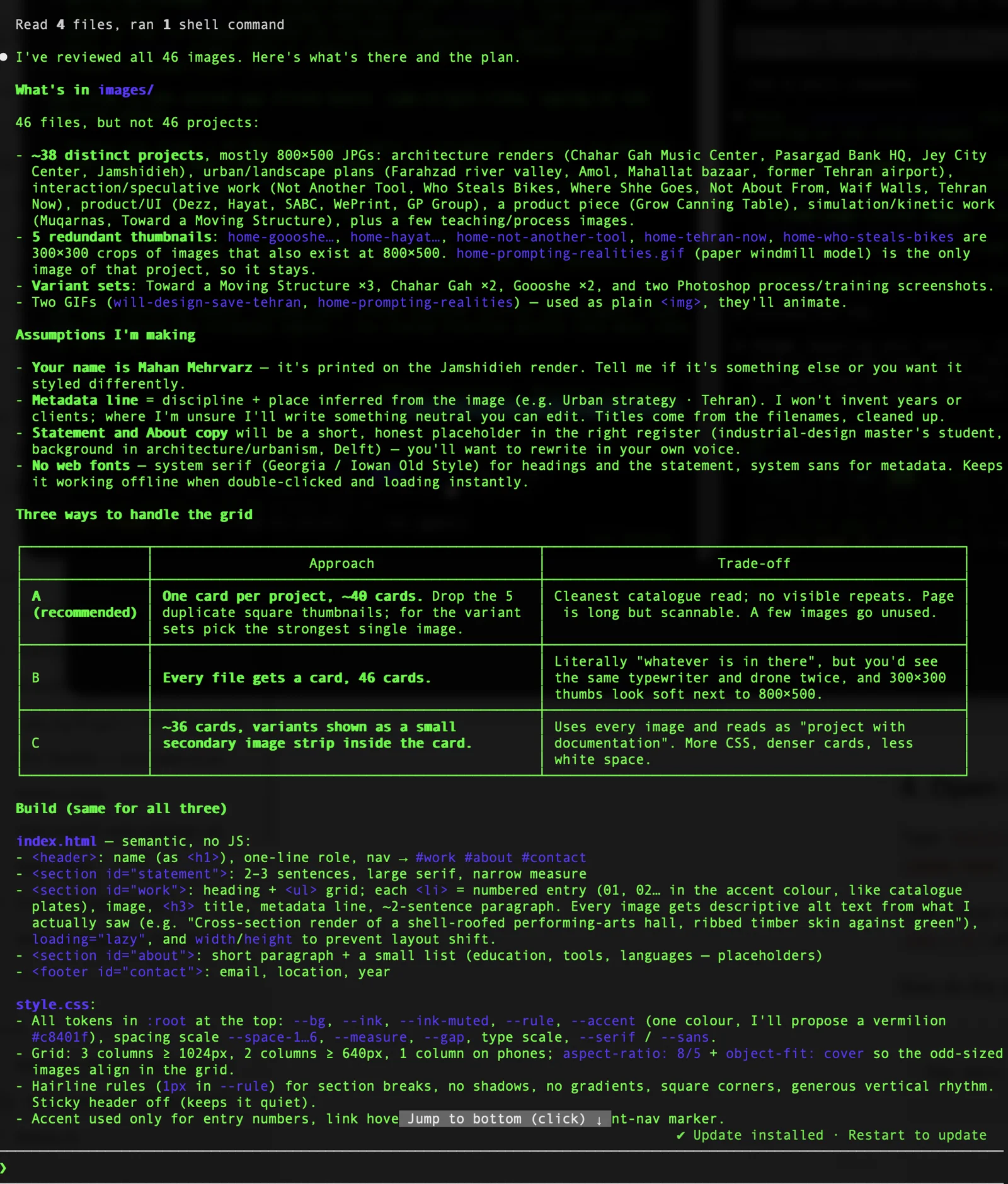
Press Shift + Tab until the prompt shows plan mode. Then paste this and adapt it:
I'm an industrial design master's student. Build me a one-page portfolio
website: plain HTML and CSS, no frameworks, no build step, no local server.
Two files, index.html and style.css, both in this folder so I can open
index.html by double-clicking it.

Sections: a header with my name and nav links; a short statement; a grid of
my projects using the images already in the images folder, each with a title,
a line of metadata and a short paragraph; a short about section; a footer.

Look at the images folder and use whatever is actually in there. Reference the
images with relative paths like images/kettle.jpg. Give every image real alt
text describing what it shows.

Tone: quiet, editorial, lots of white space, one accent colour. Think a
well-made exhibition catalogue, not a startup landing page. No gradients, no
drop shadows, no rounded corners on everything. It must work on a phone.

Put all colours and spacing in CSS custom properties at the top of style.css
so I can change the whole look from one place.

Show me the plan first.
Read the plan. Push back — "make the type bigger", "no hamburger menu", "use system fonts". Then Shift + Tab out of plan mode and let it build. Press Enter to approve each file.
4. Open it and keep editing
Type explorer . (Windows) or open . (macOS) to open the folder, then double-click index.html. It opens in your browser.
That's your website, running on your own machine. Leave the tab open. Reload it (Ctrl + R / Cmd + R) after every change Claude makes.
Now do the actual design work. One change at a time:
The hero type is too tight on mobile. More room, one size step down.Make the project images sit left and the text right on desktop, stacked on mobile.Replace the placeholder text for project 1: "Handle", product design, 2026,
graduation project. Description: [paste your paragraph].You can also open style.css yourself and change a hex value at the top. Save, reload, the whole site changes. That's usually the moment it clicks.
- Windows — right-click
style.css→ Open with → Notepad.
- macOS — right-click → Open With → TextEdit.
5. Make a GitHub account and connect it
GitHub is where your files will live. Vercel reads from GitHub to publish your site.
a. Go to github.com and sign up. Pick a username you'd be happy to have on your CV — it will appear in your URLs.
b. Install the GitHub command line tool.
Windows — in PowerShell:
winget install --id GitHub.cliSay Yes to any administrator prompt. If you'd rather click, the Windows MSI at cli.github.com does the same thing — expect a "Windows protected your PC" box (More info → Run anyway).
macOS — download the macOS package from cli.github.com and double-click it. With Homebrew, brew install gh is quicker.
c. Now authenticate. You run this one yourself, not through Claude — it's an interactive wizard with arrow-key menus, and Claude can't press arrow keys.
Type /exit to leave Claude Code, then close the terminal and open a brand-new one — a window opened before you installed gh won't be able to find it. In the fresh terminal (same commands on Windows and macOS from here to the end of this step):
gh auth loginAnswer with the arrow keys and Enter: GitHub.com → HTTPS → authenticate Git with your GitHub credentials? Yes → Login with a web browser.
It prints a one-time code in the terminal. Copy it, press Enter to open the browser, paste the code, click Authorize. You never type a password into the terminal.
d. Git also needs to know who you are, or your first commit will fail. Still in the plain terminal, with your own name and the email on your GitHub account:
git config --global user.name "Your Name"
git config --global user.email "[email protected]"
e. Check it worked, then get back into your project folder and restart Claude:
gh auth statusIt should say Logged in to github.com as yourusername. Then reopen the portfolio folder and start claude again the way you did in step 2.
Official guide: GitHub CLI quickstart

6. Add a .gitignore
Before anything goes online: a .gitignore is a list of things Git should never upload. System junk, huge files, and above all anything private.
Ask Claude:
Create a .gitignore for this project. Ignore Windows and macOS system files
like Thumbs.db and .DS_Store, editor folders, and any file containing
passwords or API keys. Also ignore a folder called images-raw so I can keep
full-resolution originals locally without uploading them.Official reference: ignoring files
7. Push it to GitHub
Ask Claude:
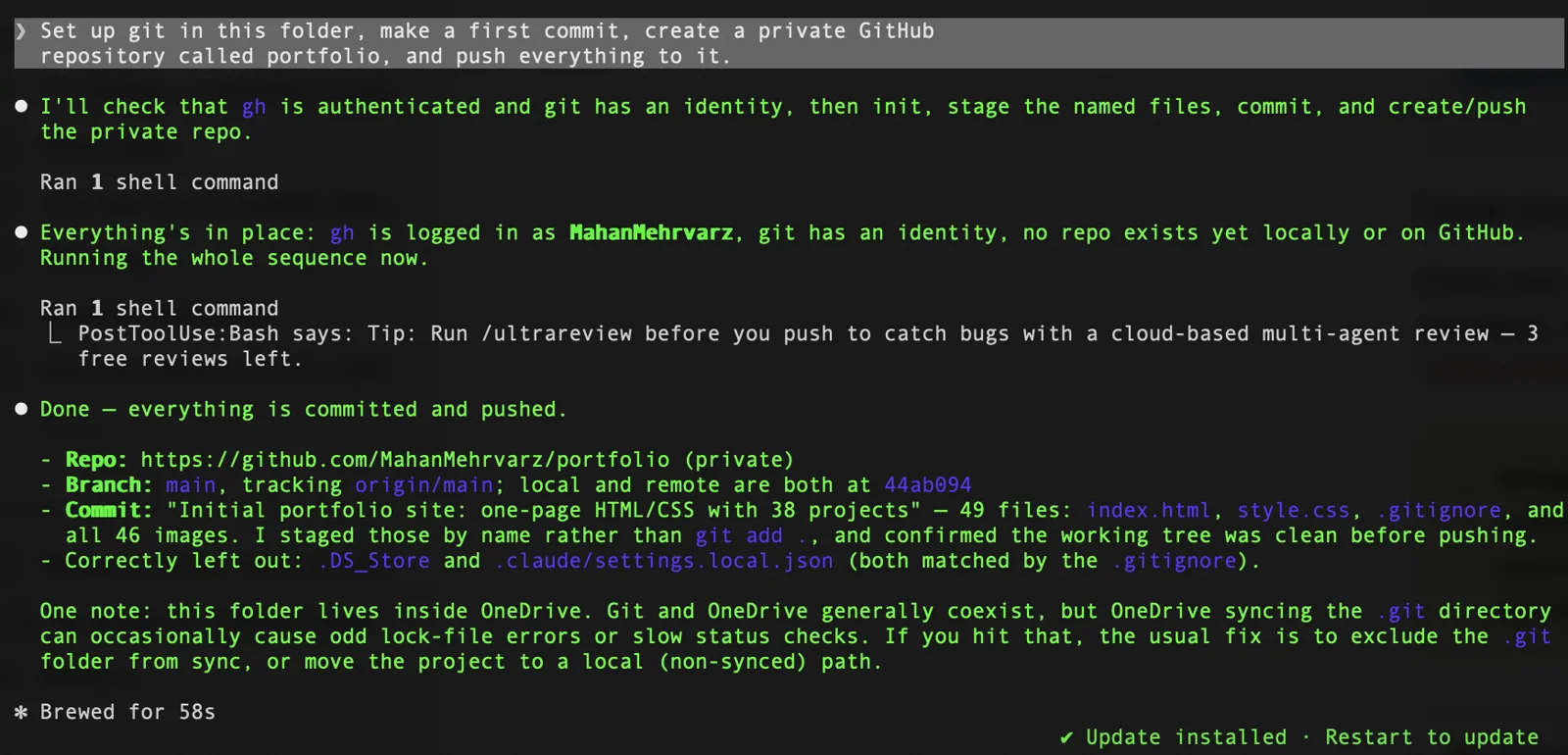
Set up git in this folder, make a first commit, create a private GitHub
repository called portfolio, and push everything to it.
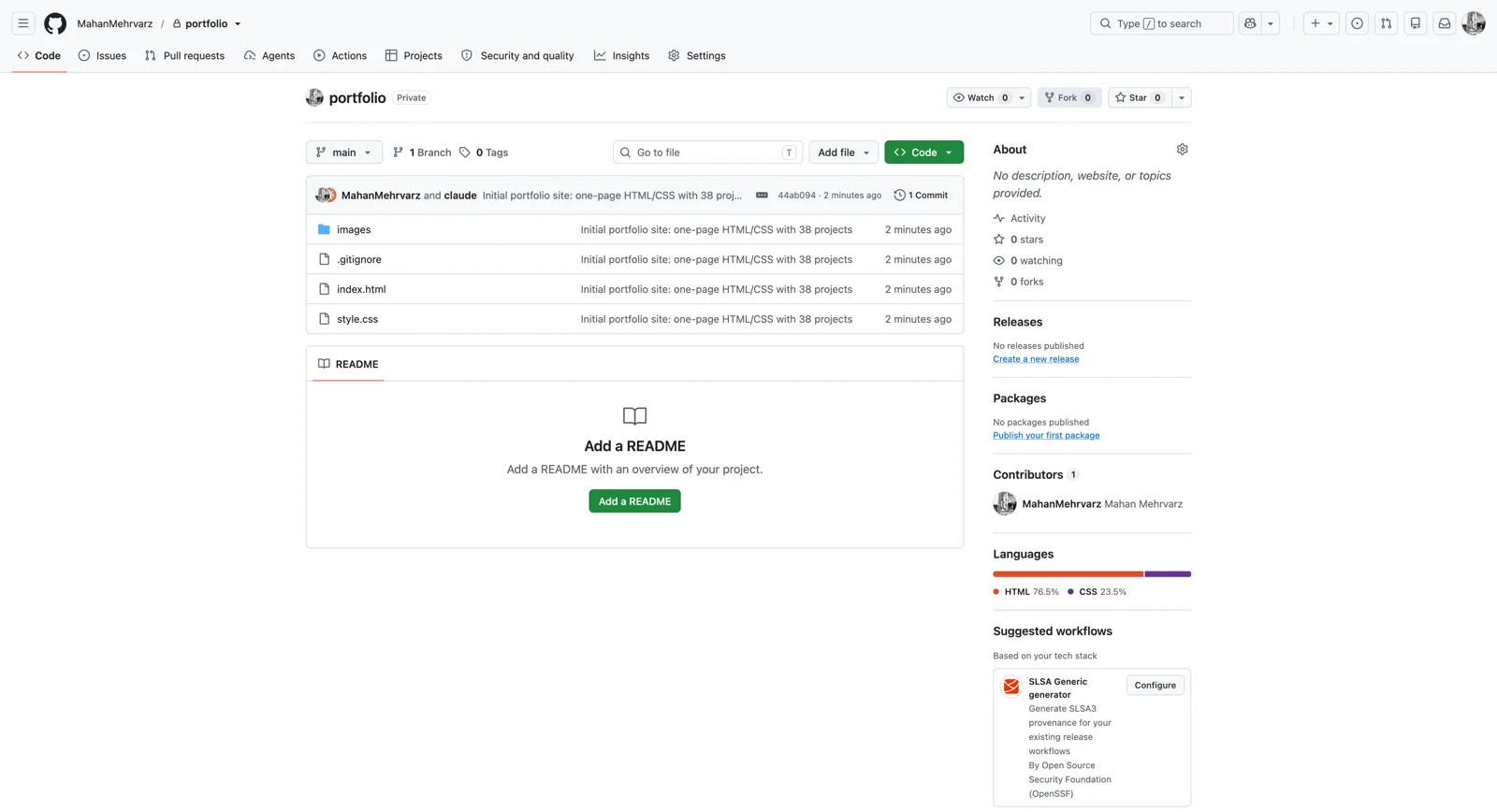
Claude does the whole sequence and gives you a URL. Open it — your files are on GitHub.
Check that index.html, style.css and the images folder are listed on the front page of the repository, not tucked inside a subfolder, and that the file is called exactly index.html — not index.html.txt. This matters for the next step.
8. Deploy on Vercel
a. Go to vercel.com/signup and choose Continue with GitHub. Pick the Hobby plan.
b. Give Vercel permission to read your repositories. This is a separate thing from signing in, and it's the step people miss. Signing in with GitHub proves who you are; it does not let Vercel see your code.
The first time you import, GitHub shows an Install Vercel screen asking which repositories to allow:
- All repositories — simplest, and fine for a personal account.
Click Install. GitHub may ask for your password to confirm.
c. From the dashboard, click Add New… (or New Project) and choose Project. Your repositories appear in a list. Find portfolio and click Import.
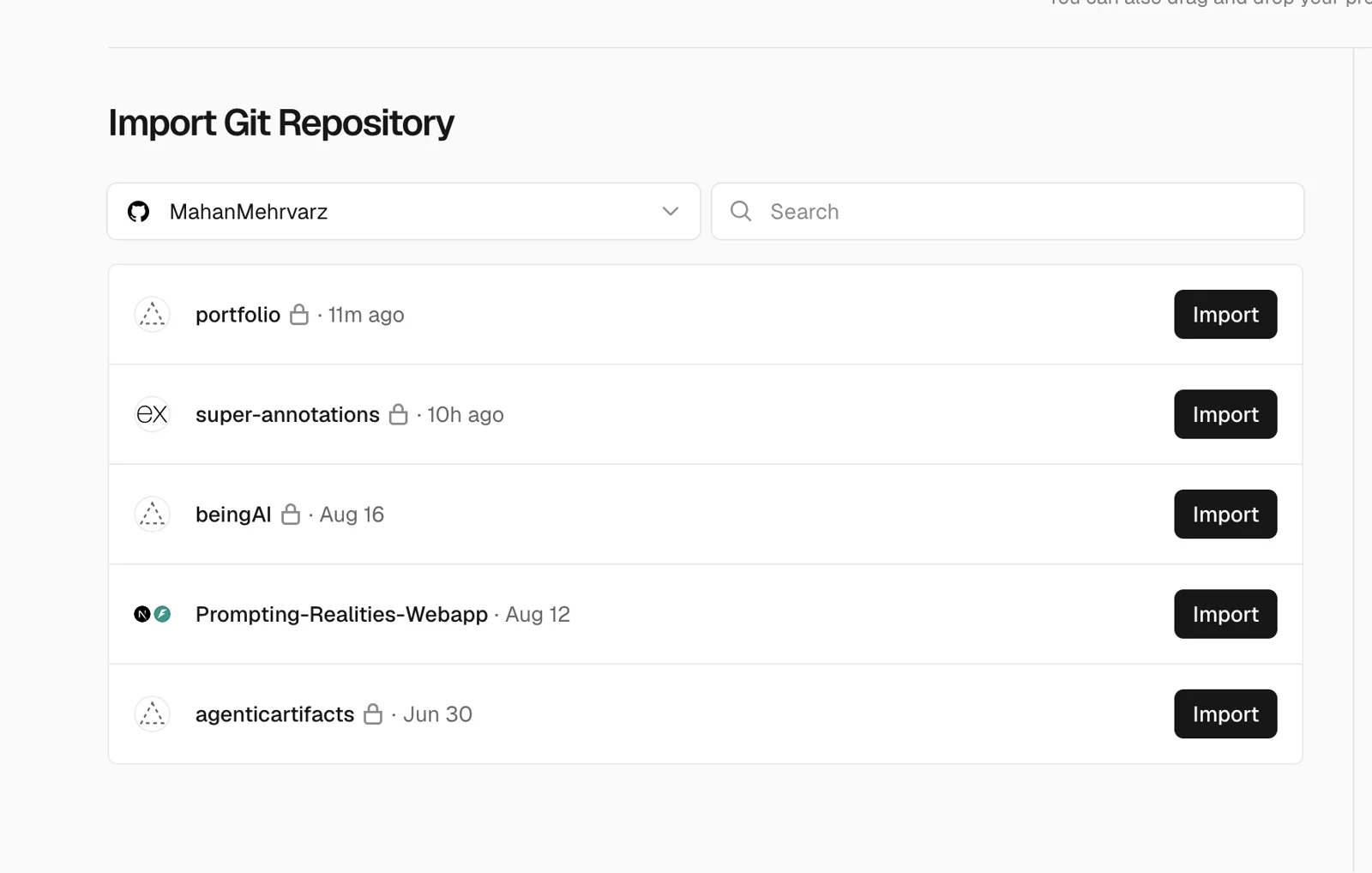
d. Now the New Project screen. It looks like a lot. You need to check two things and ignore the rest:
- Importing from GitHub (grey box, top) — confirms what's being deployed. Should read
yourname/portfolioand the branchmain. If it names a different repo, go back.
- Vercel Team — leave it as your own name with the Hobby tag next to it.
- Project Name — this becomes part of your web address, so give it a second's thought.
portfoliogets you something likeportfolio-yourname.vercel.app. Lowercase, hyphens instead of spaces. Changeable later.
- Application Preset — should already say Other. That's correct and it's not Vercel failing to detect anything: you have no framework, so there's nothing to build and Vercel simply serves your files as they are.
- Root Directory — leave it as
./. That means "the top of the repository", which is where yourindex.htmllives.
- Build and Output Settings and Environment Variables — leave both collapsed. You don't need either.
Then click Deploy.
Thirty seconds. Confetti. Your site is live at something like portfolio-yourname.vercel.app.
Official guide: deploying from Git
9. Understand what just changed
This is the most important idea in the tutorial, and it's easy to miss because it happened invisibly. Your website is no longer on your computer.
Look at the two addresses
Until ten minutes ago, you opened your site by double-clicking index.html. Look at what was in the browser's address bar then:
file:///C:/Users/YourName/portfolio/index.html
file:///Users/yourname/portfolio/index.html
file:// means a file on this disk. That address describes a location inside your own laptop. Nobody else on earth could open it — not because it was private, but because it was meaningless anywhere else. On someone else's machine that path points at nothing.
Now look at your Vercel address:
https://portfolio-yourname.vercel.apphttps:// means ask a computer on the internet to send me this. That machine sits in a data centre, it is switched on permanently, and it will answer anyone who asks.
Prove it to yourself
Don't take this on faith — the difference matters and the tests take two minutes:
- Open the URL on your phone with wifi turned off, using mobile data. Your phone has never had any connection to your laptop. If the site loads, it is genuinely on the internet.
- Send the link to someone else and ask them to open it.
- Close your laptop completely and check on your phone again. The site is still there. Your laptop was never involved in serving it — it just delivered the files to GitHub, and Vercel took a copy.
About that address
Vercel built portfolio-yourname.vercel.app from your project name. It's yours, it's free forever, and it's a perfectly respectable thing to put on a CV.
To change the wording, go to your project → Settings → Domains, where you can add or edit the .vercel.app subdomain.
If you'd rather have yourname.com, buy it from any registrar for around €12 a year and add it in the same place. Vercel walks you through the two DNS records and sorts out the HTTPS certificate itself — the padlock in the address bar — without you doing anything.
10. Change something and watch it redeploy (your change might be different)
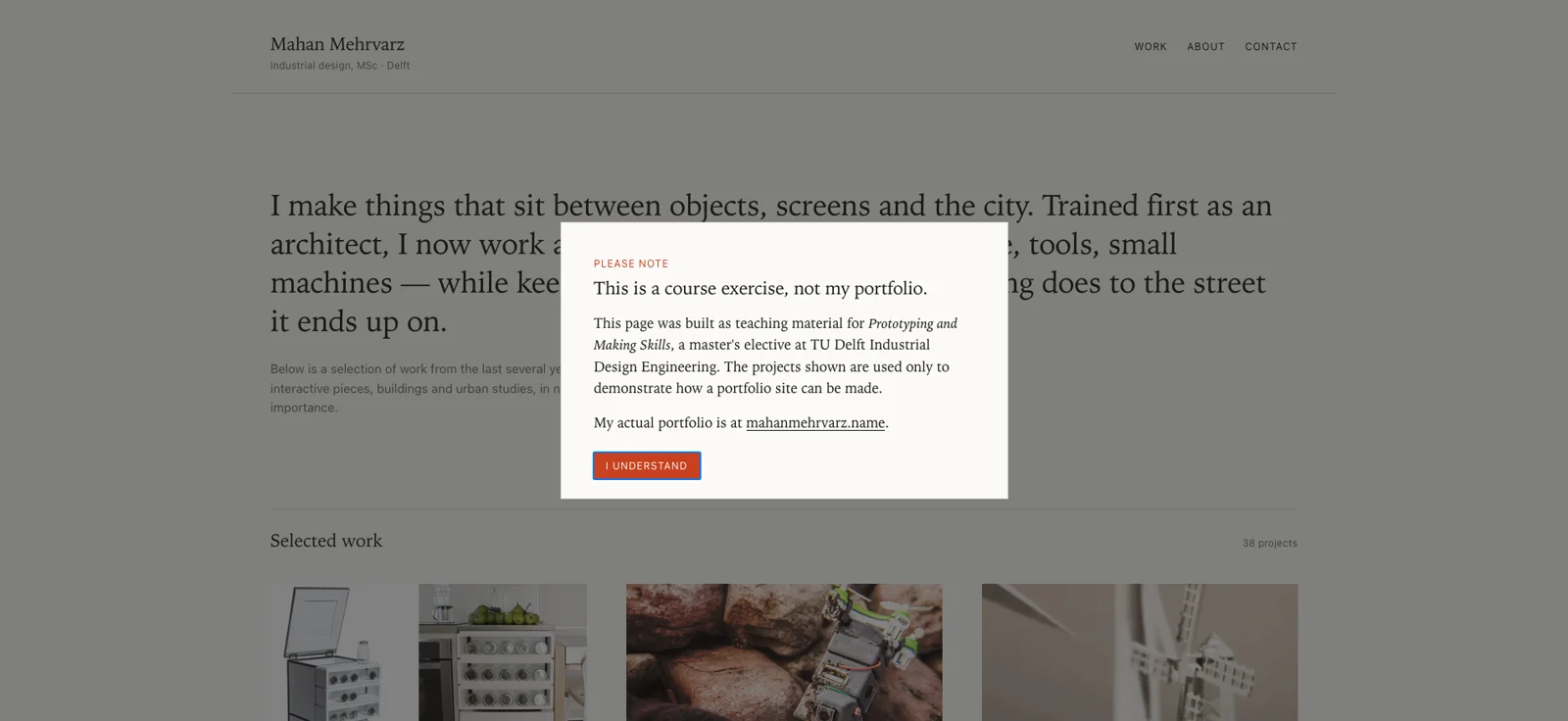
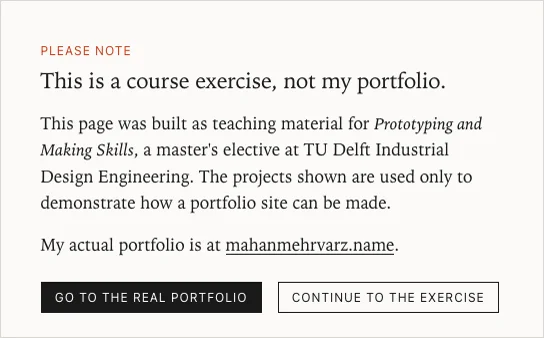
This last step is the whole point. Back in Claude Code. I have a problem making this tutorial because this is public and people might confuse this with my actual portfolio website and not understand that this is a tutorial for a class I taught 🙂. They are many ways to solve this problem but let me also use this problem to show you something.
add a pop up window at site load saying that this is not the actual portfolio of mahan mehrvarz and is just is an educational material for a master elective and TU Delft IDE"prototyping and making skills". add a link to my actual website https://mahanmehrvarz.name/. fix the UX writing as well.Reload your local index.html to check it.
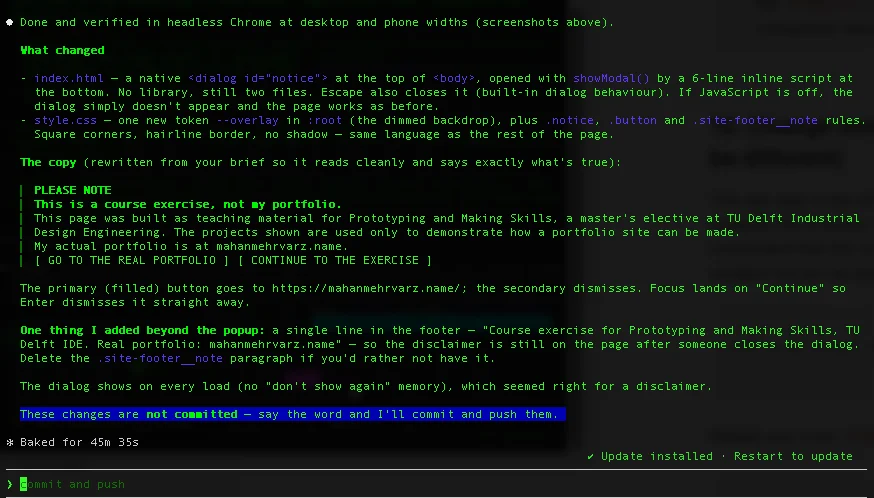
I need more things to be done:
some other things before pushing.
  1- when user click on my website link it should open a new tab.
  2- the call to action is one: I understand.
  3- make this entire website invisible to search engines. so i dont want google and other search engines to index this website.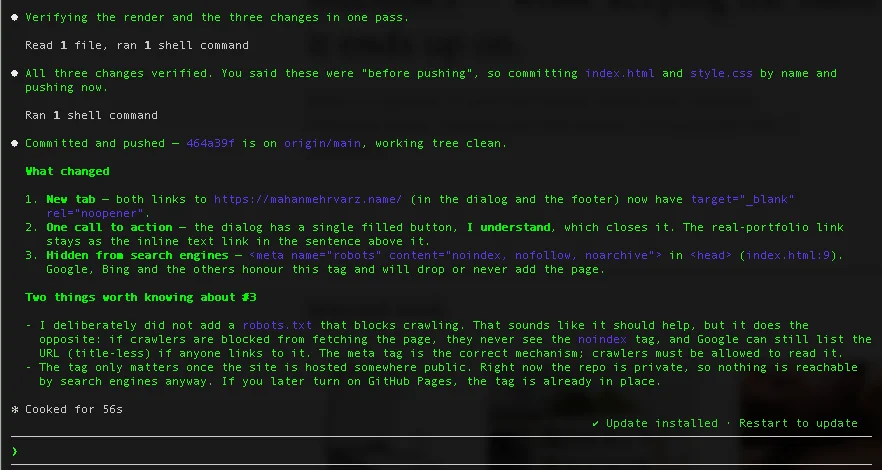
you can always ask claude to push When you're happy:
Commit this and push it to GitHub.Now open your Vercel dashboard. Within a few seconds a new deployment appears at the top of the list, building. When it finishes, refresh your live address — the contact section is there.
That's continuous deployment. From now on, updating your live website is: ask Claude for the change → reload the local file → ask Claude to commit and push → it's live. About ninety seconds.

and if you wanna check my final result it is in https://making-prototypingportfolio-tutorial.vercel.app/ . If you own a domain you wanna use for your portfolio website. you can use this guide from vercel to have the website public on your designated domain address.
Habits worth keeping
Read what changed. Ask Claude show me what you just changed, or look at the diff on GitHub. Not to audit the machine, but to learn the vocabulary. After thirty diffs you'll be editing CSS yourself. This is the difference between the tool making you capable and the tool making you dependent — and it's exactly the close looking you're already trained for.
Commit before anything risky. Then you can always say "revert that".
After installing anything, open a fresh terminal. A terminal only checks what's installed when it opens.
Say how you made it. Check your programme's policy on AI use. In a portfolio, "built with Claude Code, deployed on Vercel" in the footer is a strength, not a confession — it tells an employer you ship things.
Troubleshooting
My CSS stopped working / the page looks unstyled
On Windows, almost always style.css.txt. Notepad's Save As appends .txt unless you set Save as type to All Files. Turn on File Explorer → View → Show → File name extensions to see the real name, then rename it back. Ask Claude to check the filenames against the link in index.html.
Images don't show up
Almost always a filename mismatch. Photo.JPG and photo.jpg are different files to a web server, even though your laptop pretends otherwise. Turn on file extensions first so you can see the real names, then ask Claude to check them against the paths in the HTML.
The browser shows an old version
Hard-reload: Ctrl + F5 on Windows, Cmd + Shift + R on macOS. Browsers cache CSS aggressively.
The terminal can't find gh
Windows shows gh : The term 'gh' is not recognized...; macOS shows command not found: gh. Either way, the terminal was open before you installed it — a terminal only checks what's installed when it opens. Close it, open a brand-new one (from the Start menu on Windows), try again.
Vercel shows 404 NOT_FOUND
Check the file is called exactly index.html, lowercase, with no hidden .txt on the end, and that it appears on the front page of the repo rather than in a subfolder. If both are fine, open your project's Settings, find the build and output settings, override Output Directory to a single dot . and redeploy.
Vercel isn't picking up my changes
You committed but didn't push. Ask Claude push my commits to GitHub, and check the commit appears on GitHub before blaming Vercel.
git commit says "Please tell me who you are"
You skipped step 5d. Run the two git config --global lines and try again.
I've broken everything and want to go back
Ask Claude: show me my recent commits, then undo the last one. This is why you commit often.
Hand-in checklist
- Site is live at a public URL and loads on a phone
- Your real projects, with real images, under ~500 KB each
- Every image has meaningful alt text
- Contact route works
.gitignoreis in the repository, no secrets committed
- At least three commits with messages a human can read
- You can explain out loud what
index.htmlandstyle.csseach do
- AI assistance acknowledged
Where to go next
- A page for each project. Right now every project on your front page is an image and nothing else — someone can look at it, but they cannot read it. Pick the two or three you actually want to be asked about and give each one its own page: the images that did not fit in the grid, what the brief was, what you decided and why, what you would do differently. Then link the grid tile to it. Ask Claude
make a page for the chair project with a few images and a short write-up, and link its tile on the front page to it. Three projects you can explain say more about how you think than twelve you cannot.
- A second page. Ask for
about.htmland a link to it.
- A CV as a PDF. Drop it in the folder, link to it.
- A real domain.
.vercel.appis free forever, butyourname.comcosts ~€12/year from any registrar. Add it under Settings → Domains; Vercel handles the certificate.
CLAUDE.md— a file in the project folder that Claude reads at the start of every session. The place to write down anything you've had to explain twice. How it works.
- Learn Git properly. Getting started with Git · Pro Git (free, chapters 1–2 are enough for a long while) · About pull requests · Dangit, Git!?! for undoing mistakes.